Thursday, December 1, 2016

Note / Productivity Apps

Disclaimer: I chose these apps / software families because they are able to be used on pretty much every device. I did not review or compare Apple's "Notes" due to the fact that it cannot be used on Android and has a sub par experience on Windows computers and mobile devices.

Evernote 
I've used Evernote for 5 years. They have a family of apps that integrate so users can take notes, save pictures or audio, copy information from the Web (using a browser extension), draw or hand write notes (using the Penultimate app), and scan and then save documents (using the Scannable app). They also had a food and recipe app that they discontinued. This software family for a while was a favorite of tech users especially heavy users of "Productivity software". Recently they made changes limiting uploads to 60 megabytes per month, which is pretty low as storage goes, and they recently raised prices on premium plans. The paid versions of Evernote now cost $34.99, $69.99 and $120 per year, based on the amount of storage a user requires. Downloading notes is not difficult but the formats you have to choose from are not friendly (proprietary EXM or HTML) it would be better to copy and paste but that is time consuming. There are some nice word processing features on the web / desktop version that are not available in the app. Users can share their notes, collaborate (even chat with people in real time), make tags, create separate notebooks, insert items from Google Drive, save audio or photos, make audio notes, attach files, and create shortcuts. Evernote also integrates with IFTTT (If This Then That) and has helpful widgets for iOS messaging, iPhone, and Apple Watch.  I chose these apps / software families because they are able to be used on pretty much every device. I did not review or compare Apple's "Notes" due to the fact that it cannot be used on Android and has a subpar experience on Windows computers and mobile devices.


Google Keep 
Google Keep allows users to take and save pictures and record audio notes. What you save counts towards each Google account's allotment of data which is 17GB (this is for all of your Google Services, to learn more about items that count and those that don't read this: ) There is no monthly restrictions on file sizes. Users can add collaborators, share notes, change the color of a note which also changes the background color, make a copy, create reminders, pin a note so that it remains at the top of the list, create check boxes, and create labels. There is an archive feature for notes you are not using but want to store long-term storage. Some of the downsides I have read is that there is no undo button for mistakes, no revision control, and there is no easy way to download notes. I had trouble finding my notes in Google Drive, it should be easier in my opinion. There is not a way to do handwritten notes in Google Keep. Like Evernote there is a browser extension. 


OneNote 
Microsoft has their own productivity app that comes built into Windows 10. It is extremely handy when using a Surface product because when you click the stylus the OneNote app opens up. OneNote is available on any device with apps or a web browser. OneNote allows users 5GB of OneDrive storage (previously 30GB, there are some grandfathered users) but if you are an Office 365 user it is unlimited. Similar to other productivity apps it allows users to share, collaborate, make handwritten notes, save audio or photos, add file attachments, and has a browser extension to save web information. The online interface is very similar to other Microsoft Office products like Word. OneNote features that are not present in the other productivity offerings are: version control, changes by author, adding in tables, Office integration, and inserting symbols. I personally would have liked if OneNote allowed handwriting / document markup with your finger on PC, Mac, iOS, and Android like they do on Windows mobile devices.  


Ratings:  
  
Features: OneNote  
  
User Interface: Evernote  
  
Storage: Google Keep  
  
There are things to like about each of the productivity products. I guess I would suggest each user use the one that offers what they value most: features, interface, or storage. I'd also say that if a someone uses an Android they would probably prefer Google Keep, if Windows Mobile then OneNote, and if Apple then Evernote The pictures that accompany each review give you a glimpse at the 3D Touch features, user interface and workflow, and browser extensions for each, to help make your decision.


Thursday, November 17, 2016

Securing Your Digital Life


So much of our lives now occur on smart phones and computers that if they were to be compromised a lot of personal details could be gathered very quickly. The list below is not comprehensive but a starting point. I will start with easiest and most important and go to most difficult and less important.


Tip #1 Enable a passcode on your smart phone.

If you are using a thumbprint, that is pretty good but recent court cases show that the government can force you to open your phone with your thumb / finger print however they cannot force you to give a passcode. It has also been easier for hackers and other security researchers to find a way past print readers than the passcode system.


Tip #2 Enable two factor authentication on your e-mail.

Your e-mail can be a single point of weakness. Weak passwords, leaving your e-mail signed into a computer, or accidentally revealing your password by reusing it on a site that gets hacked can leave your e-mail open to access. What’s the big deal? Well, your e-mail address is usually where users send password reset requests at other websites. Your e-mail can also provide a treasure trove of information from your previous correspondence and save e-mail, such as where you shop, bank, work, relatives, friends, social media accounts, and much more. Once in an attacker usually changes the password to lock you out and proceeds to do as much work as possible before you can alert the proper people. Two factor authentication only allows you or the person who has access to your smart phone to have the the two keys: your password and the one time computer generated code.


Tip #3 Use strong passwords and a password manager.

Hacks on a multitude of websites illustrate just how many weak passwords people use such as Password1234 or 123Abc. The best thing to do is to use a phrase that has letters, numbers, symbols, and upper / lower case such as !ts@lways5unny. There has been a debate about whether password managers are completely safe because users are putting all their passwords in one place and some have been hacked, but it is much safer than reusing passwords or using weak passwords and the hacks on these password managers yielded unusable information. I recommend LastPass it has so many great features (password generator, secure notes, two factor, alerts you when a site you use has been breached, security audit) and now it is free to use on both computers and smartphones https://www.lastpass.com/


Tip #3 Use HTTPS when visiting websites.

Websites with HTTPS are using a more secure web browsing protocol. You can easily make sure that you are using HTTPS when available by installing an extension HTTPS Everywhere for Chrome https://goo.gl/IDZ1I and Firefox https://goo.gl/DduiT4


Tip #4 Use a secure messaging app that encrypts your messages.

Apps like Signal, WhatsApp, and Wickr provide end-to-end encryption which means that only the people sending and receiving the message can read a message because they have the computer generated keys to unlock the code encasing the message. If you want links to these messaging apps, to see a list of others, or to learn more visit: https://www.eff.org/secure-messaging-scorecard


Tip #5 Use encrypted e-mail.

There are e-mail programs that allow you to use PGP encryption to send and receive messages but users usually have to be pretty tech savvy to do it on their own. Now there is an easy solution that works both online and on your smartphone. ProtonMail was developed in Switzerland at CERN and uses some of the industry best encryption and security. Easy to use and free at: https://protonmail.com/


Tip #6 Turn on full disk encryption or use an encrypted cloud service.

Both Windows https://goo.gl/khqIGi and Mac https://goo.gl/AVYgQh have built in full disk encryption that ensures that only the person with the password can read / use files stored on your computer. If you are more of the cloud storage type there is a very secure, very inexpensive solution with SpiderOak https://spideroak.com/solutions/spideroak-one


Tip #7 Sensitive searches should not be done on Google.

I am a fan of Google but they collect a lot of data on their users. If you are doing a search that you do not want to receive ads related to or made a part of the profile that Google has about you use DuckDuckGo https://duckduckgo.com If you want to erase your Google search history, check out this article https://goo.gl/DnwWnh


Tip #8 Incognito Mode / Private Browsing isn’t completely anonymous

Unfortunately there is a lot of information that can still be gleaned from you even when browsing the Internet in this fashion. Use the Tor browser or a Tor enabled app for your mobile device. This will allow you to hide your IP address (where you are physically) and will delete any cookies / cache after you end each browsing session. Learn more at https://www.torproject.org

Sources that helped:


EXTRA {in the news} :

Facebook has had a hands-off approach letting fake news be handled the same as real facts. Some feel that Facebook has a duty to protect its users from misleading information. The articles below discuss these discuss the issue in far more depth and get into some basic education about media literacy.

Probe reveals stunning stats about fake election headlines on Facebook https://goo.gl/mM5ylg

From Hate Speech To Fake News: The Content Crisis Facing Mark Zuckerberg https://goo.gl/KWVQEK
I write fake news that gets shared on Facebook https://goo.gl/YgKUil

An Extremely Helpful List of Fake and Misleading News Sites to Watch Out For https://goo.gl/InpdYL

Quiz: Can you spot the fake stories? https://goo.gl/1jnYNd

In the war on fake news, school librarians have a huge role to play https://goo.gl/2fcWdv


Thursday, November 3, 2016

Save it for Later

There are so many great articles to read online these days but sometimes you need to save it for later. There are apps that help you save these articles in a format that makes them easier to read by stripping the article from the website and downloading it into the app. The two apps that I will review both are multiplatform which means they work on every type of device so you can find an article on your desktop computer, save it using a browser extension, and then read it on your phone later. Both companies have great how to videos on their websites. I decided not to include the links to all the app stores but those links can be found on each company’s website. I think that each app has its strong points and for users it will ultimately be about style. I really like Pocket because of the interface design, tags, and recommendations but dislike that it has ads.

I was inspired to write this week’s review based on a recent episode of Android App Arena https://twit.tv/shows/android-app-arena/episodes/120 and the fact that Instapaper this week announced that all of their premium features are now free http://blog.instapaper.com/post/152600596211

Instapaper (Free) Android, iOS, Chrome, Safari, Firefox, Amazon – After signing up for an account Instapaper sends an e-mail to walk new users through the process of using the app and browser extension. Users can customize their reading experience by changing font, spacing, background color, and brightness. There is a really interesting speed reading feature that shows you one word at a time quickly. The menu also has a video category so you can also curate YouTube videos or the ones embedded in an article. A lot of users like the newspaper like layout. There is a nice "Notes" section that users can save highlighted text and notes about what they've read. The app suggests articles based on your reading preferences and ones that are popular with other Instapaper users.


The picture below shows the Chrome extension in action:

The pictures below are some screenshots of the app:


Pocket (Free with premium features) Android, iOS, Chrome, Safari, Firefox, Android – Easy to use with a bright and friendly interface. Users can customize font type, font size, switch to the web view, and change background color. Saving articles is a breeze by either using a browser extension or e-mailing it to your pocket account. Unfortunately, other customization options are a part of the premium package. The app can read the article to users. Users can put tags on articles so that they can quickly find what they are looking for in their saved list. The app has ads that can be removed if you purchase the premium package. Where the Pocket app was superior was in article recommendations. Users can get article recommendations from the Pocket community, their contacts, social media connections, writers, and influencers. The app’s premium features: dark mode, eliminate ads, further customization, and unlimited archival storage that saves an article even if the website version goes away, cost $4.99 a month or $44.99 a year.


The picture below is the Chrome extension in action:

The pictures below are screenshots of the app:


Thursday, October 27, 2016

Apps for New Parents

Someone I know is having a baby and I came across a video podcast that discussed Apps for New Parents: https://twit.tv/shows/android-app-arena/episodes/116 so today's review of apps are all geared toward helping parents to be and new parents keep track of progress, be better informed, and capture the moments of their major life events.

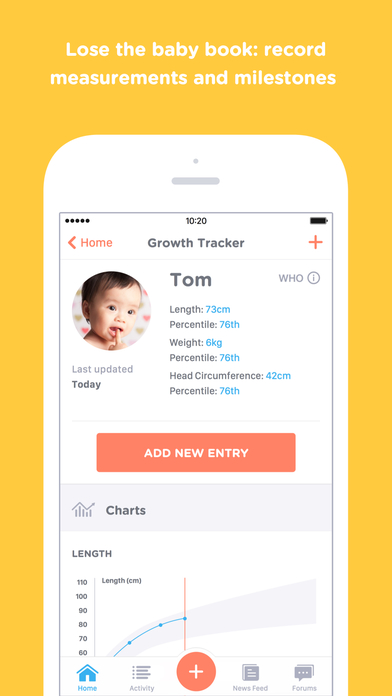
Feed Baby (Free) Android and iOS – Users can track feeding times, types, and sides (breast feeding). Nice user interface. Track diaper changing, baths, sleeping, weigh, height, and much more. The app creates charts and graphs based on data. There is comparison data available from the CDC and WHO.

Website: https://www.feedbaby.com.au/


Baby Day Book (Free: basic, Pro: $3.99) Android only – Users can track food, drink, diapers, activity, temperature, or you can create “other”. The app creates charts, graphs, and a daily summary. Easily track multiple children. App has ads and does not allow you to sync without paying.

Website: http://www.drillyapps.com/


The Wonder Weeks ($1.99) Android, iOS, Windows, Amazon – This award winning teaches you about normal milestones and development. The app tracks the mental health and development milestones of children. App informs users of how to comfort your child through these changes. A bestselling book is also available: The Wonder Weeks: How to Stimulate Your Baby's Mental Development and Help Him Turn His 10 Predictable, Great, Fussy Phases into Magical Leaps Forward. By: Frans X. Plooji

Website: https://www.thewonderweeks.com/


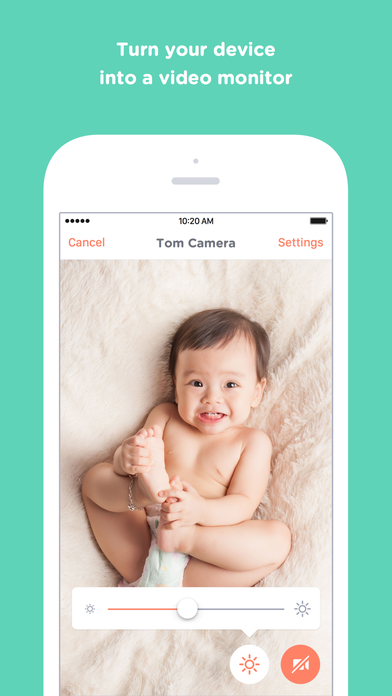
Baby Bundle (Free; with in app purchases) iOS only – Users can track their baby’s daily activities and growth. They can stay up-to-date on health information and keep vaccinations records in order. One of the really nice features is the app’s interactive forum and parenting guide. The app has the ability to turn your phone into a baby monitor.

Website: http://www.getbabybundle.com/


The Bump (Free) Android and iOS – For newborns and parents to be, The Bump offers real-time parenting advice, expert articles and an active community of users. Weekly checklists help users stay on top of everything and the app helps users keep track of the pictures, videos, and memories of their pregnancy and newborn.

Website: http://www.thebump.com/


Hell’o Baby (Free) Android and iOS - Giving you a place to keep all your precious memories, Hell’o Baby is an easy-to-use interactive baby album. You can easily add content, such as photos, videos, or audio, and then share it with your loved ones. The app also offers up a place to insert memories such as your baby’s first words or steps.

Website: https://hell-o-baby.com/promo


WebMD Baby (Free) Android and iOS - WebMD is the first place many people go to check their symptoms or look up health information. This app focuses on your baby’s health, providing advice relating to the child’s age, hundreds of articles, tips, and videos. Weekly updates give users information that corresponds to the health related issues children may encounter at their current stage of development.

Website: http://www.webmd.com/webmdbabyapp


Tuesday, October 25, 2016

The Many Problems of Yahoo

You may or may not have heard but Yahoo has been in the news quite a bit. First they were being sold to Verizon for 4.8 billion dollars. This was no surprise to people that follow technology because Yahoo has been doing poorly in the last couple years despite acquiring other companies, investments, and changes to the company. Verizon bought Yahoo because they have a lot of online advertisement revenue and technology patents.

Many technology reporters have disliked Yahoo's website, search, and e-mail for sometime. The reason for this dislike was that the company has paid associate and referral payments to companies that sent them users despite many of those companies doing so through malicious and illegal means such as malware, ad ware, and deceptive software downloads.

News recently came out that Yahoo's e-mail system was hacked and 500 million users accounts were affected. It is unclear how long Yahoo knew this occurred but the breach was from 2014 and they just notified the public last month. This Business Insider article claims that the real number of affected accounts is probably closer to one billion http://www.businessinsider.com/yahoo-insider-hacking-2016-9?r=UK&IR=T and this article discusses who may have pulled off this massive hackhttp://fortune.com/2016/09/29/yahoo-hacked-by-eastern-european-gang-cybersecurity-firm-says/

Then just a few weeks after this happened an insider at Yahoo discussed that the National Security Agency or Federal Bureau of Investigation asked for a real time filter of all e-mails to find and record suspect conversations (Here is a New York Time article discussing it: http://www.nytimes.com/2016/10/06/technology/yahoo-email-tech-companies-government-investigations.html?_r=0 ) . It turned out that it was much worse, there was a 'rootkit' on Yahoo's system which may have allowed government employees access to any and all communications that were being made on Yahoo's system http://motherboard.vice.com/read/yahoo-government-email-scanner-was-actually-a-secret-hacking-tool

Why does this all matter to you?
Many articles from technology publications and the Electronic Frontier Foundation have asked that users close their accounts with Yahoo. They say this because Yahoo has not taken security seriously and not protected its users information from the government or from outside bad actors.

While I think that everyone who has a Yahoo account should immediately change their password; I do not think that you should delete your account and the reason that I say that is because Yahoo recycles e-mail addresses. If you have 'ABC123@yahoo.com' and you go delete your account then in 6 months Yahoo will make 'ABC123@yahoo.com' available for someone else. If you fail to inform everyone from your family and friends to that website that sends you reset codes to change your password, it means that someone else will have that e-mail address and may get an e-mail that was intended for you.

If you have an account with Yahoo change the password and try to change all your accounts that have a Yahoo e-mail address as the username / contact to another provider. I have had one employee and a few patrons that have had people try to get into their Apple account, Facebook account, or receive text messages that were "phishing". In one case a patron was called and told that they had been "hacked" and that they needed to purchase protection or assistance. Luckily that patron called me and we were able to determine that this was a scam.

Thursday, October 20, 2016

Caller ID / Call Blocking Apps

Recently I listened to a technology program that discussed Caller ID apps. This came up because of a recent story where hundreds of people were arrested in India for running a scam where they called US citizens and pretended to be the IRS http://www.wsj.com/articles/indian-police-detain-workers-over-possible-irs-phone-scam-1475674691 I read another article that was really interesting about how one journalist kept scammers on the phone for a long period of time and learned a lot about their operation http://www.vox.com/first-person/2016/10/18/13276464/irs-scam-phone-cartoon .
There are a lot of telemarketers and phone scammers that call these days and they seem to ignore the Do Not Call list that has been created by the FCC. Several app companies have created crowd sourced databases to combat this annoyance. I have reviewed a couple below and each has its strengths and weaknesses.

Hiya (Free) Android and iOS – This app came from the company that created WhitePages.com. They have a really nice interface and users can make calls directly from the app. There are no ads and users can block both calls and SMS (text) messages from various numbers. They have a large database of numbers that is constantly growing.


True Caller (Free) Android and iOS – As caller ID and call blocking apps go this app has the most users and the largest number database. The app has ads and not the nicest interface, good just not great. I like that when it does recognize a spam number the whole screen is red which screams to me “Don’t answer!”.


Whos Call (Free) Android and iOS – This app comes from the same website that a lot of people use as a reverse lookup to see who or what just called them when they don’t recognize a number. I really like the user interface of this app the best but unfortunately it does not have a large database. The lookup feature is the strongest part and when it finds a number in its database it has a good amount of information about it. The app has ads but they are very small and unobtrusive.


Contactive (Free) Android only – I was not able to try this app out but I found it interesting enough to include it. The app pairs up with the user’s social media accounts so that when someone calls it shows it shows all kinds of information about that person and their picture. It also has a database of telemarketers and scammers. You can browse friends in your contact list and see information from their social media accounts at a glance. The interface looks nice and it has a large database of numbers.


Wednesday, October 12, 2016

Alarm Clock Apps

Life Time Alarm Clock (Free with in-app purchases) Android only – styles, lots of tones or music, vibration choices, pre-alarm to wake you gently, snooze settings, challenge to wake you up.
YouTube Video illustrating the app: https://www.youtube.com/watch?v=F5xzwNOHhxo

AlarmPad (Free or Pro $3.99) Android only– gives you the ability to annotate your alarms, create greeting, receive news and other information for when you awake, reminders, sound settings, vibration settings, dismiss methods, challenges, NFC or QR tag requirements to shut off alarm to make you move

Rise Alarm Clock ($1.99) iOS only - nice looking simple clean app, lots of sound options, multiple background options, you can set alarms for multiple days, can play tunes to put you to sleep, set how you want the alarm to shut off (shake, swipe, or tap)
Website (has a nice video to illustrate): http://rise.simplebots.co/

Alarm Clock Pro (.99) Android and iOS – This app has the alarm display that you might remember from the 80’s and 90’s with the large bright digital numbers. You can keep the time on if your phone is plugged in. It will give you sound options, gentle wake, news, weather, local information.

Sleep Cycle (Free with in-app purchases) Android and iOS – This alarm seeks to wake you during the lightest portion of your sleep cycle. You choose a 15 minute window in which you want to wake up and it determines how asleep you are based on the noise and vibrations from your bed. You can choose sounds and vibrations. It gently wakes you up and records how well you slept.
YouTube Video Review by Suchas Nadiga: https://www.youtube.com/watch?v=isCiHWV-rKg

CARROT Alarm ($2.99) iOS only – This app is unique it tries to wake you up with silly robotic (or alien) voice that threatens or mocks you until you shut it off. To get a better understanding watch the app developer’s video trailer below.

Wake Alarm Clock ($1.99) iOS only – This alarm has a beautiful design and uses a natural interface (in simple terms this means users swipe and use gestures on the screen instead of pushing buttons). To set the alarm you can swipe the time or speak it. To turn off the alarm you can: slap, swipe, shake, or flip. You can use it on an iPad as well as an iPhone. The website has a cute video illustrating all the features on its website.