Thursday, September 8, 2016

Search Ads

I decided to write about this topic because recently I heard an episode of the podcast “Reply All” where someone lost their camera in a taxi in New York City and the website that they found through a Google search said that they would help them recover their item for $47. The website was misleading, it doesn’t do much to help. here are a lot of other websites that mislead consumers into thinking that they are official or legitimate but in the fine print they explain that they are not official or affiliated with the legit company or government entity.. To hear all the examples and an in-depth discussion you can listen here: https://gimletmedia.com/episode/76-lost-in-a-cab/

One of the things that I have seen occur in the library is that patrons will accidentally navigate to websites that charge them for services that are not necessary, or collect personal information to sell to advertisers. When people search for something on Google, Yahoo, or Bing many times they often mistake the websites listed as ads for non-profits, government, or free services. Unfortunately, the disclaimers on the search websites can be small and not easily noticed.

I have two examples below based on recent patron interactions. One patron searched for “McDonald’s application” and they used a website that gave their website to marketing companies that sent them spam to their e-mail address and phone calls trying to sell services. You can tell from the examples where the arrows are red are for websites that are not connected to McDonald’s. The word ad is listed to the side but it is small. Sometimes there is a disclaimer. This seems misleading at best and a scam at its worst. You can see the correct website with a green arrow beside it. When you are searching on mobile it can be harder to tell which ones are advertisements.

The other example was a patron that was searching for a way to “create a resume”. As you can see in the examples below have web addresses that end in “.COM” this denotes company, and they all have “Ad” in front of the web address. What I noticed is that people will mistake the website for a free resume creation tool but when someone wants to print or download the website requires that they pay. In a lot of cases the peron spent hours working on a resume and are now held hostage or have to start all over.

When you are searching for a government website try to make sure that it ends in ”.GOV” or that it is the “official website” of a federal, state, or local government. For instance if you are looking for a tax form you want to make sure that the web address begins with https://www.irs.gov . I have seen websites for the most common searches related to government such as grants, unclaimed property, government auctions, etc. that direct people to websites asking you to pay for forms, help, or searching services. Please double check the web address and try to notice when searching whether there is any indication that this could possibly be an “ad” or “sponsored site”.

When in doubt… ask a librarian!

Also there have been two scams where people claim to be from the IRS or Microsoft. These are scam! Neither will ever call and claim that you owe them money.


Friday, August 26, 2016

Cord Cutting

I have gotten asked several times about cord cutting and streaming.
The usual streaming services: Hulu, Netflix, and Amazon are highly recommended.  Each has their strengths and you can choose based on what you like to watch. I would also like to suggest three other alternatives that you may or may not want to consider.

Kodi (otherwise known as XMBC)  – This open source software allows you to create a home theater using a computer of your choice. If you have ever seen advertisements trying to sell you a “stream everything” type box, this is what they are selling. It is a lot like a Roku style box but you can create one of these yourself and because it is open source. The companies that sell Kodi boxes as “stream everything” consoles are using add-ons that allow for illegal streaming. If you make one yourself you can limit it to legal services and you can create one inexpensively. A Raspberry Pi , old Desktop, or old laptop could be used for as your device. This webpage has a step by step guide to creating a Kodi box otherwise known as an XBMC (Xbox Media Center) http://www.cnet.com/news/how-to-set-up-a-home-media-center-with-kodi-xbmc/ Here is the Kodi website to learn more about the software or download it: https://kodi.tv/


Playstation Vue – this service allows for local and cable channels to be streamed on any device. You can use your computer, mobile device, or a Kodi enabled box. The plans range from $29.99 a month for 55 channels to $44.99 for 100 channels. It is month to month so you can cancel at any time. To learn more, visit:  https://www.playstation.com/en-us/network/vue/


Sling TV – similar to Playstation Vue Sling TV has been in the streaming business longer and you can use it on pretty much every device. They have offered some great deals and promotions in the past. Their service allows users the ability to record programs like a DVR (digital video recorder) to save programs so that they can easily watch on multiple devices. Their pricing right now starts at $20 for 25 channels all the way to $40 for 100+ channels.  Learn more here: https://www.sling.com/
If you want to use a computer that wirelessly streams your Kodi system you can use a Chromecast https://goo.gl/tKCRFg
If you want to see a video review of Kodi and Playstation Vue, you can watch here: https://goo.gl/HDsPGx

Let me know any ideas for reviews / articles.

Thursday, August 18, 2016

Pact App


I thought that I would do an in-depth app review about an app that I have mentioned a couple times in the past because I know that there are a lot of people trying to live healthier. This app is called “Pact” and you can make a small amount of money each week if you do health activities that you promise to do. The downside is that if you don’t do them the penalty is a lot higher than the money you make. The average reward for a week if you participate in all three pacts is between $1.75 and $2.25 the penalty per item missed is $5.00. You can see how it might be possible to lose a lot of money on this. I have made an average of about $2.00 a week for over a year.


Here is a look at the app’s menu. It has a nice “Tutorial” area that explains how “Pact” works and how you record your activities. There are three pacts: exercise, food logging, and veggie. Each pact has certain rules / limitations. For instance, with the exercise pact you have to do 30 minutes of activity. The exercise can be tracked with step counting, motion tracking, or gym check-in. You can only count exercise once a day. So this means you cannot make up for a missed day by going to the gym twice on another day or doing an hour of activity.


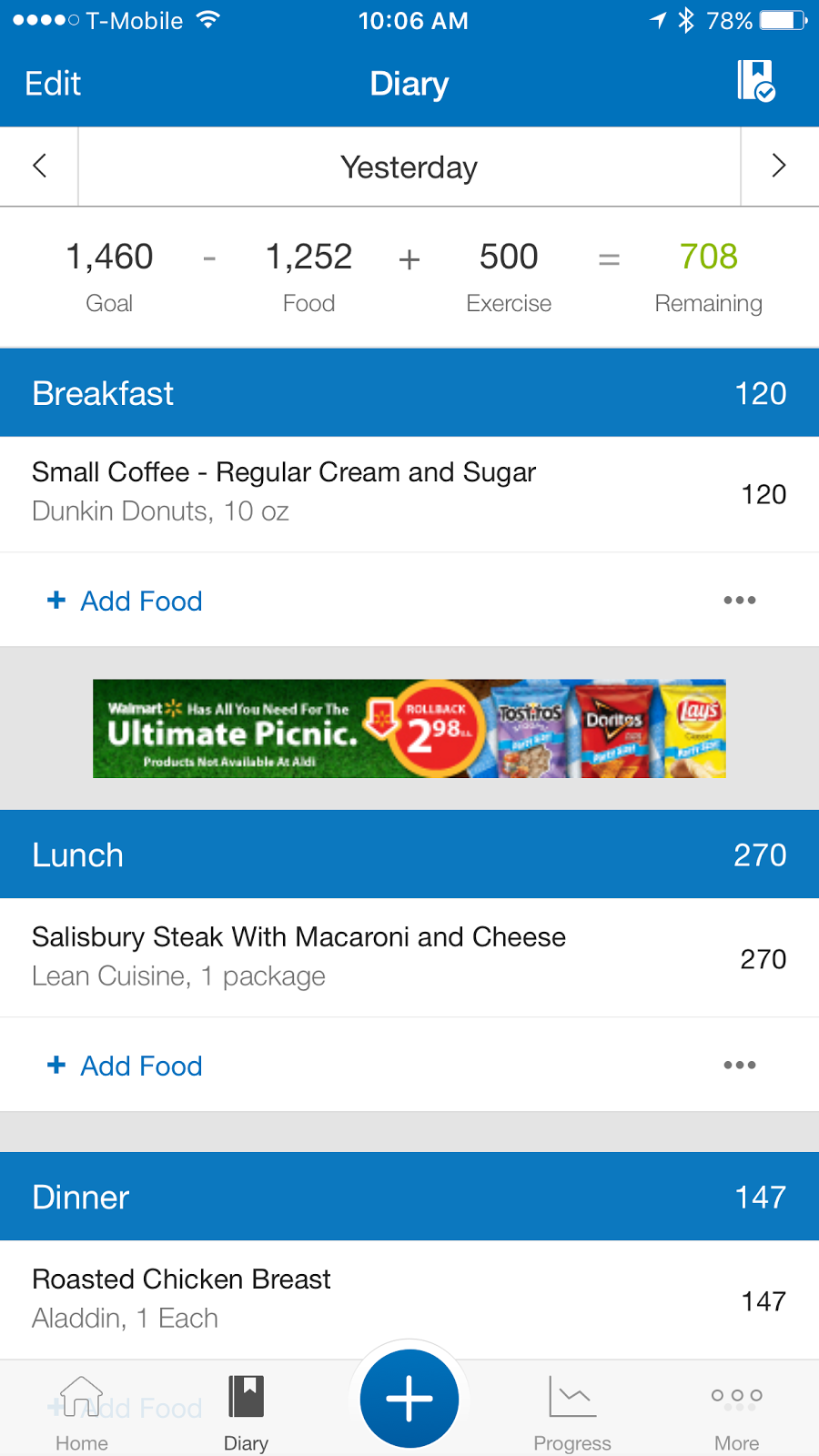
For "food logging pact" you have to use a partner app. The one that I use is “My Fitness Pal” and like the exercise pact there are certain rules and limitations. You have to log all your food the day you ate it also known as “the pact day”, there must be three “meals”, and you have a minimum of 1200 calories and a maximum of 1450 for it to be a successfully logged day.


The “veggie pact” is the easiest and the name is deceiving. You can eat or drink fruit or vegetables. You need to take a picture that gives evidence that you are consuming it and that it is a full serving of fruit or vegetable. Users take a picture and the community of Pact users determines whether they feel it fits the definition of fruit or vegetable. In my opinion they are very lenient because I have seen fruit juice, smoothies, and a handful of dried fruit counted.


Each “pact” has a different reward value. If you participate, at the end of the week they send you a “rundown” with a record of what you completed and how much money you earned or owe. If you want to retrieve your rewards you can request a preloaded debit card or you can connect your PayPal account (which is what I did). The minimum amount that can be transferred depends on which you method of payment you choose. I believe it is $20 for the card and $10 for PayPal. The way I think about it is that “Pact” helps me pay my monthly gym membership fee. The app is available for Android https://goo.gl/FzK9gi and iPhone https://goo.gl/olXIC7

Thursday, August 11, 2016

Kids Device Management

With children going back to school I wanted to review something that would be related in some way. I decided on managing your child’s device. How can parents limit the time their children spend on their mobile device and restrict what do on that device. What I learned is that the more control that you want the more expensive the solution.

First, I’d like to say that if you have an Android device for your child you should check out this video podcast Android App Arena episode on “Kids Device Management” https://twit.tv/shows/android-app-arena/episodes/101 The host does a good job of showing users that have a Jellybean or more recent Android device how to set it up for kids.

Parental Control Apps


Nova Laucher (Free / $4.99) Android only – This allows users to delete apps, widgets, and search bars from the home screen of an Android device. It isn’t a device control exactly instead it is a way to customize an Android device in a way that makes it more kid friendly. http://novalauncher.com/


Dinner Time Plus app icon
DinnerTime Plus ($3.99 ) iOS, Android, Amazon – Parents have the ability to shut off the internet connection and access to apps either at the press of a button on their device or by setting up a schedule. http://www.dinnertimeapp.com/


Our Pact app icon
Our Pact (Free) iOS, Android – Parents can do the same thing as the DinnerTime app for free. The only flaw that I saw was in the iOS app there are certain apps that children still have access to and unlike Android parents cannot download a launcher allowing them to get rid of Apple apps and search boxes (this may change in the iOS 10 options). http://ourpact.com/


Kidslox app icon
Kidslox ($6.99) iOS, Android, Amazon, Windows, Mac –This app has the added benefit of reporting how long your child performed certain tasks on the device. It also has a “Kidlox mode” for parents that share a device with a child, basically restricting what they can do with the device. https://kidslox.com/en/#home-app-screen


More Control

Curbi app icon
Curbi ($6.99 monthly) This app allows parents the ability to filter certain apps, websites, categories, and the ability to make purchases (both app store and in-app). It has detailed reporting of your child’s activity. It has the ability to schedule use or revoke privileges at any time. http://www.curbi.com/


Net Sanity device management
Net Sanity $6.95 monthly or $59.95 annual) A comprehensive digital management platform it allows parents the ability to filter and monitor use of all Internet enabled devices. It gives parents the ability to receive detailed reports and granular permission down to specific websites or actions. https://netsanity.net/


Circle device management device
Circle ($99 device for computer, $9.95 monthly) The Circle device is a home device that allows the parent or administrator to control access per device. The user can shut off access to all devices (or place restrictions on them) or place restrictions on each device individually. Users can set-up permissions for guests that use their network (in case your child has friends over). This allows control of access to mobile devices, computers, and even set-top boxes like gaming consoles or TV streaming. The device can connect to your router using Wi-Fi or a network cable. It has a battery so it cannot be unplugged. They are a subsidiary of Disney so everything has a very polished design. There is also a monthly device management app for cellular enabled phones, tablets, etc. that parents want control and reporting abilities it is called myCircle. https://meetcircle.com/

Wednesday, August 3, 2016

Two Factor Authenication

Google Authenticator
Protecting Yourself against Cyber Threats
One of the things that I am most passionate about teaching people is how to keep themselves safe when it comes to using technology. As more and more of our personal and financial information are available digitally, we have to be extra cautious. One of the greatest ways to protect yourself is to know what to protect and how to protect it best. Recently I had someone try to hack me multiple ways and it prompted me to write about this week’s topic: two factor authentication.

Last Pass Authenticator
What is Two Factor Authentication
You may have seen the option to enable two factor authentication on a website that you log into but you may not have understood what that means or why they offer it. The idea is that you have two forms of identification.
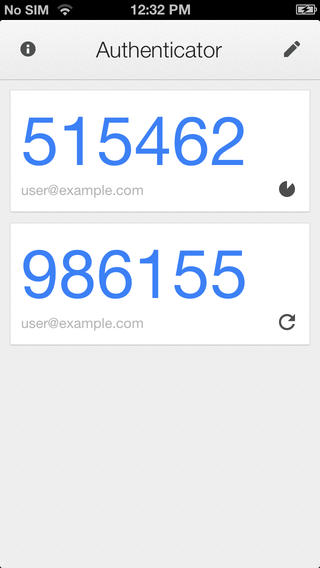
Usually it is something you know, like a password or the answer to a question and something you have on you like your phone. Some people confuse two step authentication where they ask for two passwords or a password and a personal question. Unfortunately, these are two step systems are not much more secure than a simple password because hackers can use social engineering (researching your personal information) to figure these out. The most common two factor authentication is done by having an SMS (text) message sent to your phone. Other two factor options are random number generating authentication apps like Google Authenticator (Android https://goo.gl/sbBxn and iOS https://goo.gl/lvsE1 ) but there are others by LastPass http://goo.gl/P9P1nF and Duo Mobile http://goo.gl/TLVk3D , an automated phone call where the number is spoken; a number sent directly to your phone through a manufacturer push message, or what is known as a Yubikey which is a USB device that provides a unique long string of numbers https://www.yubico.com . While some have argued that SMS (text) as a factor can be broken it is difficult and expensive to do so.
Yubikey

Where You Should Use It
The simple answer would be everywhere it is offered but that can be tiresome. Your e-mail is the most important because if someone can get into your e-mail they can lock you out by changing the password and can also use the “Forgot My Password” on other websites to get in and wreak havoc. Then next important would be anything financial: bank, retirement, and 
social security. Last would be shopping and social media websites. Here is a full list of websites that you can use two factor authentication: https://twofactorauth.org/ You can usually turn it on in the settings portion of the website or in your account information area.


 .

If you are interested in knowing more:

Cutts, Matt. Please turn on two-factor authentication. 8/6/2012. https://www.mattcutts.com/blog/google-two-step-authentication/

Constantin, Lucian. 5 things you need to know about two-factor authentication. 3/31/2016. http://www.pcworld.com/article/3050358/security/5-things-you-should-know-about-two-factor-authentication.html

Franceschi-Biccierai, Lorenzo and Joseph Cox. The Motherboard Guide to Not Getting Hacked. 8/2/2016. http://motherboard.vice.com/read/the-motherboard-guide-to-not-getting-hacked

Wednesday, July 27, 2016

Video Editing Apps

This app review was one of the most labor intensive because I decided I should try to create a video start to finish with each app to see how the process (I know most of them are super short). There was only one app listed here that I was so unhappy with the results that I decided not to post a video.

Best

iMovie (Free) iOS only - This app comes pre-installed on iPhones. The app allows users to make simple edits and easily create a video with transitions, music, and text easily. The app automates certain things like transitions, pans, and how test display but allows you to make changes. I thought the video I created was professional looking and was made with minimal effort on my part.
Example: https://youtu.be/DFGPHuHEWc0


Splice (Free) iOS only - Created by Go Pro this app gives users a lot of the functionality of iMovie with a some additional transitions, more music choices, a wider variety of text overlays, and filters. A great app that is easy to use. https://spliceapp.com/
Example: https://youtu.be/6xZGPr7-l0Y

WeVideo (Free, $3.99 for additional features) iOS, Android, Web - An easy to use app that gives control over text, trim video footage, filters, music, and voice over. There is no control over transitions. There is a watermark and end credit but they can be eliminated and additional features unlocked for $3.99. I did not review the web based editing but that looks like it would give some additional tools. I like that it works on multiple platforms. https://www.wevideo.com/
Example:https://youtu.be/CPV81KHBnTE

Good

Cute CUT (Free, $5.99 premium features) iOS and Android. - The video editor looks very professional giving users control of each video clip and picture in a stream like in a high-end program like Adobe Premier. The app will not allow any music it considers DRM (digital rights management) protected. I found the lack of transitions, filters, and small selection of text and music choices restrictive. Premium gets rid of the watermark and allows for videos of unlimited length. You can do some interesting things like draw on pictures or video. The share to Facebook portion kept returning an error for me. http://cutecut.mobivio.com/
Example: https://youtu.be/cQioXcuwnL8

Google Photos (Free) iOS and Android - This Google app that backs up and organizes your photos and videos already does so many cool things like creating folders, animations, photo edited copies, and will create a suggested video. If you tap the three dots in the top right, tap "create a movie", then tap on what you want included, music, text, and style. It doesn't have all the customization of some of the apps but it's pretty nice.
Android: https://play.google.com/store/apps/details?id=com.google.android.apps.photos&hl=en
iOS: https://itunes.apple.com/us/app/google-photos-free-photo-video/id962194608?mt=8

Example: https://youtu.be/VVPkgq7qarw

Magisto (Free, Subscription) iOS and Android - If you want to make movies out of your pictures and videos but you want to automate putting it all together this app is for you. You select or the app pulls pictures and videos does some editing or asks what style editing you would like, suggests some music and text, then makes it available for sharing. Users do not have any way to make choices as far as multiple text displays, transitions, music changes, etc. If you want to save or download the video it is .99 a download, $4.99 a month, or $19.99 a year. https://www.magisto.com/
Example: https://youtu.be/36VGsmjciXQ

Limited Use

VidTrim (Free, Pro $1.99) Android Only - The app allows users to trim video clips and merge them. There is some minor filters and sharing capability but does not do much more than allow very basic editing. https://play.google.com/store/apps/details?id=com.goseet.VidTrim&hl=en

Thursday, July 7, 2016

10 Amazing FREE Websites

1. College courses, no tuition

Class Central https://www.class-central.com/ lists hundreds of online class courses from the likes of Harvard, Stanford, and MIT.

2.  Self-destructing email addresses


With 10 Minute Mail https://10minutemail.com you can create a temporary email address that will automatically self-destruct in 10 minutes. This allows you to sign up for sites, lists, make comments, and sign up for deals without the unbearable spam you normally get.

3. Ambient Sound / White Noise

If you simply can't work/sleep/concentrate without some kind of comforting sounds, A Soft Murmur has you covered http://asoftmurmur.com/

 4. Learn another Language


Almost every language in the world is available to learn at Duolingo https://www.duolingo.com/ and you can take it on the go with their free app.

5. A massive documentary collection


There are documentaries on a wide variety of subjects and from award winning to amateur. Learn something new or simply be amazed http://documentaryheaven.com/

6. Automate Tasks


Do you want a message sent when you are on your way home? Would you like to get news stories on your favorite subject sent to your inbox? An automatic backup of your contacts to a spreadsheet? You can do this and a lot more with If This Then That https://ifttt.com/

7. New Fonts


Working on a document or a poster and you are looking for a font that would make it pop? Lost Type has you covered and they are all free for any use http://www.losttype.com/

8. Free Photo enhancement tools


The Adobe universe of tools is expensive and there is so much there that most people do not need. Pixlr https://pixlr.com is free and it has a light weight version called Express that allows for easy changes quickly. They also have apps you can download for your mobile device

9. Get Control over Your Finances


Mint https://www.mint.com/ helps you create a budget quickly and can automate tracking if you connect it to your bank and credit card accounts. It will send you alerts when you go over your budgeted amount, it has smart tracking of expenses, and has monthly summary of what you spent. The mobile app allows you to make corrections or view your progress quickly.

10. Create Graphics and Publications


There are expensive desktop programs that can allow you to create posters and graphics, but Canva https://www.canva.com/ is free and web based so you can use it without installing anything on your computer. The templates and free graphics and fonts make creating things a snap. There are items that cost money to use but you can import your own materials.